
QuickBooks Bill Pay and Contractor Payments, Synced Both Ways
Stop double-entering invoices. Cleo Pay syncs bills, vendors, payments and categories with QuickBooks Online, so your books stay accurate and audit-ready.
Two-way sync with QuickBooks Online. Connect by signing in to QuickBooks.
HOW IT WORKS
Four steps to connect, real benefits from day one
Step 01
Connect
Sign in to QuickBooks from Cleo Pay and approve the connection.
Step 02
Map
Auto-maps your chart of accounts, vendors, and payment categories.
Step 03
Sync
Invoices, bills, and vendor records flow automatically with two-way sync.
Step 04
Reconcile
Payments in Cleo Pay are marked as paid in QuickBooks automatically.
What You Get
Every invoice and payment is automatically reflected in QuickBooks.
Paid bills are recorded as bill payments in QuickBooks.
Full audit trail: who approved it, when it was paid, and the linked invoice.
Map each location to its own QuickBooks class or location code.
SEE IT IN ACTION
Real product, real features
Every screenshot is from a live Cleo Pay account connected to QuickBooks.
Integration Dashboard
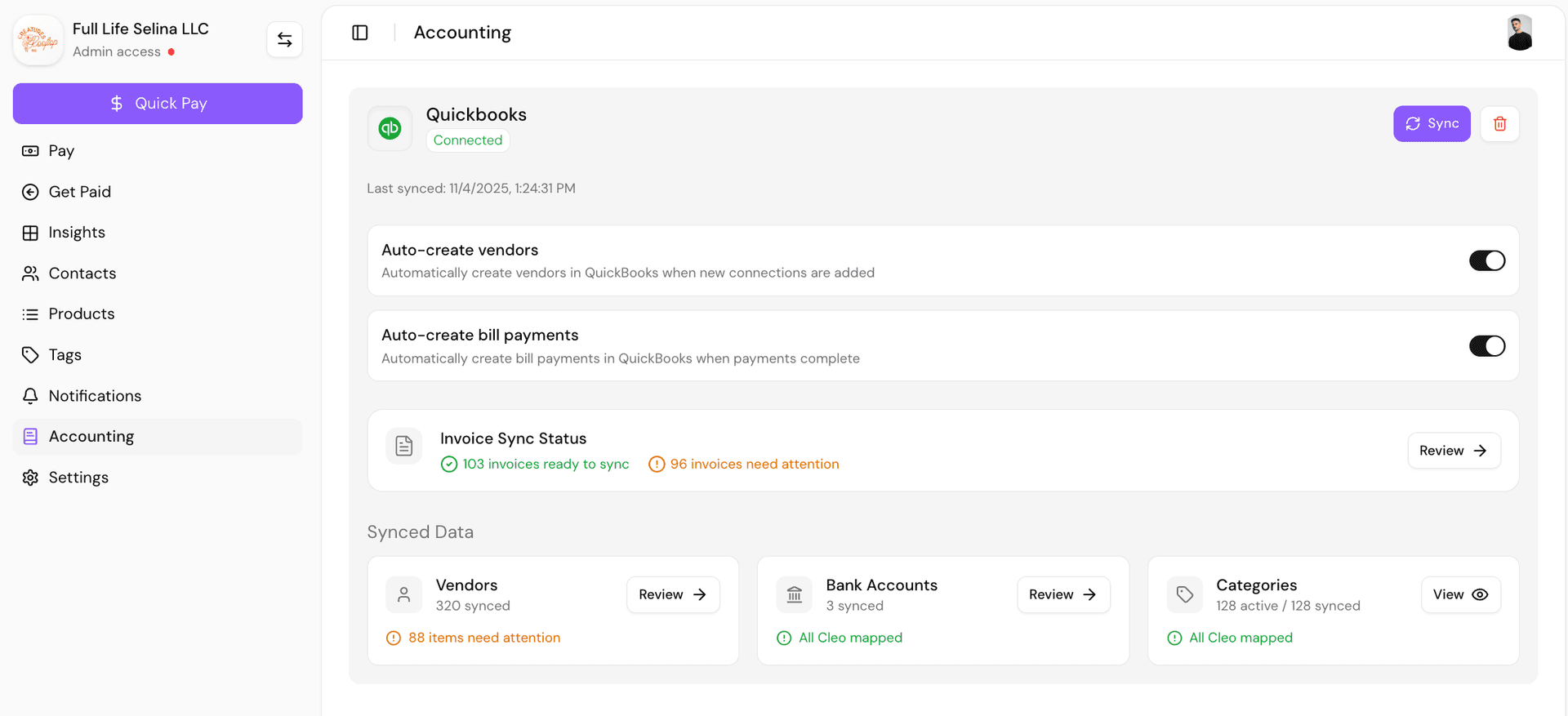
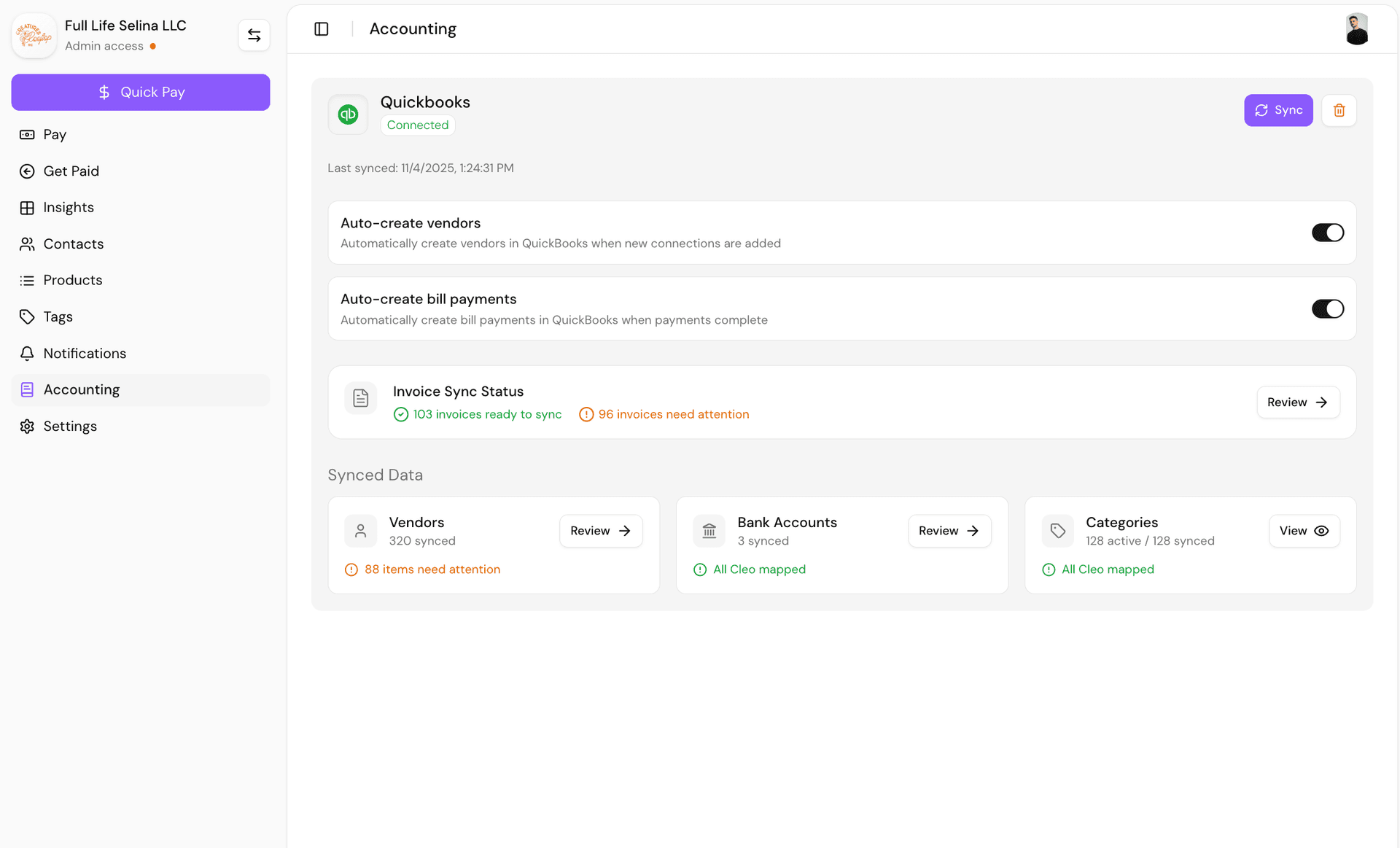
See everything at a glance. Your QuickBooks connection status, auto-create settings for vendors and bill payments, invoice sync readiness, and a live summary of synced vendors, bank accounts, and categories.
Vendor Reconciliation
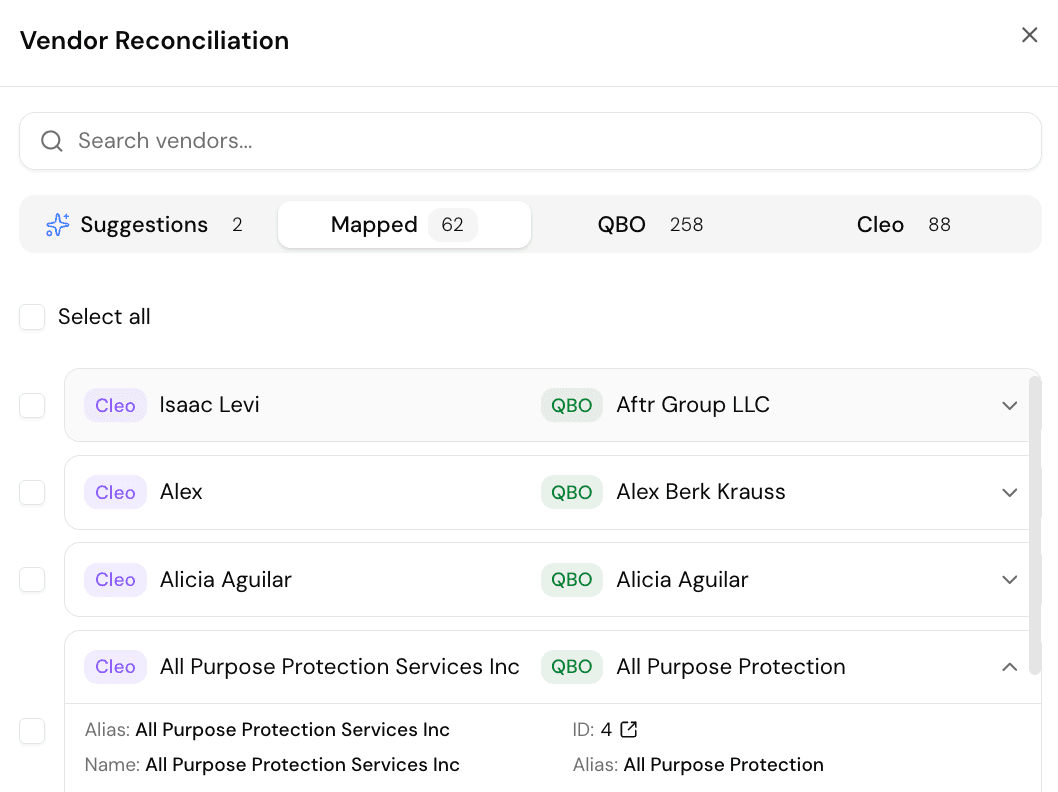
Cleo Pay matches your vendors to QuickBooks contacts automatically with AI-powered suggestions. Review mapped vendors side-by-side, fix mismatches, and bulk-reconcile in clicks.
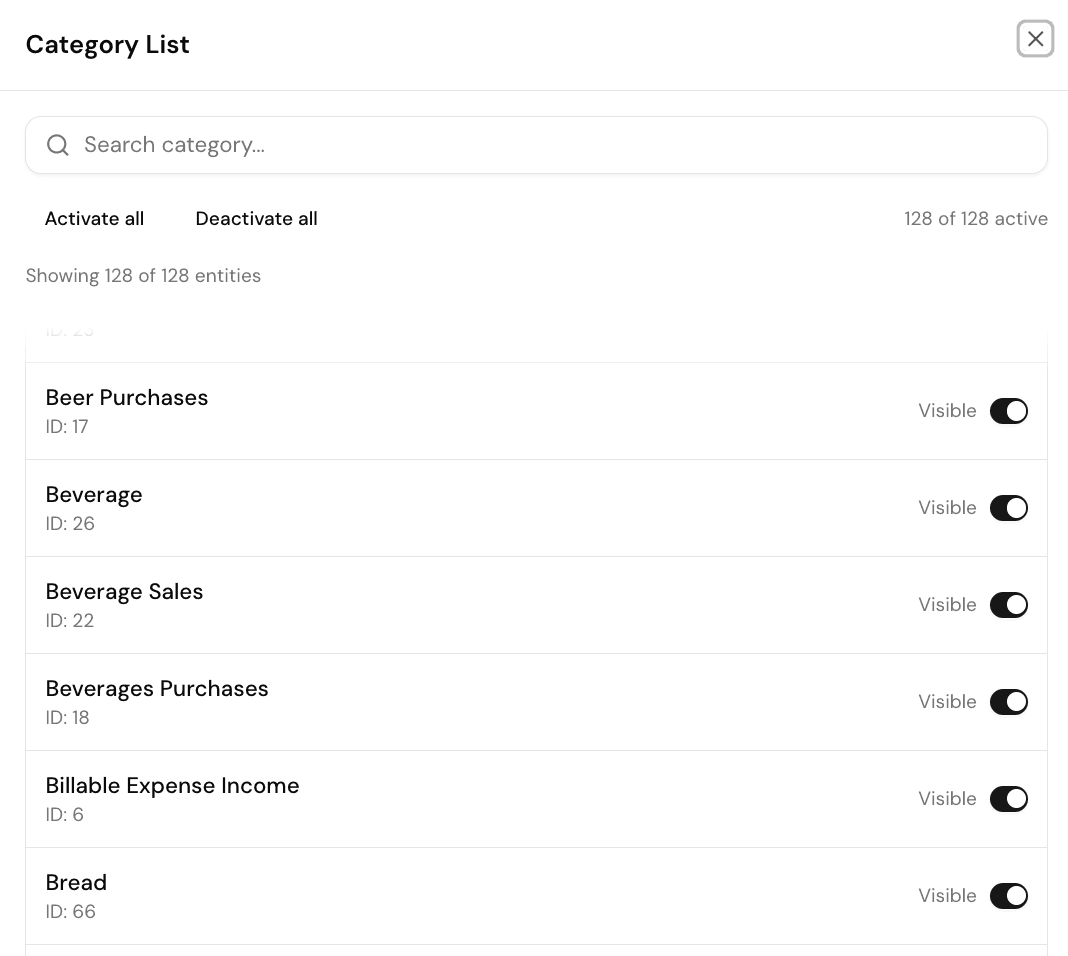
Category Mapping
All your QuickBooks categories synced and visible in one list. Search across 128+ categories, toggle visibility, and control exactly which accounts flow between systems.
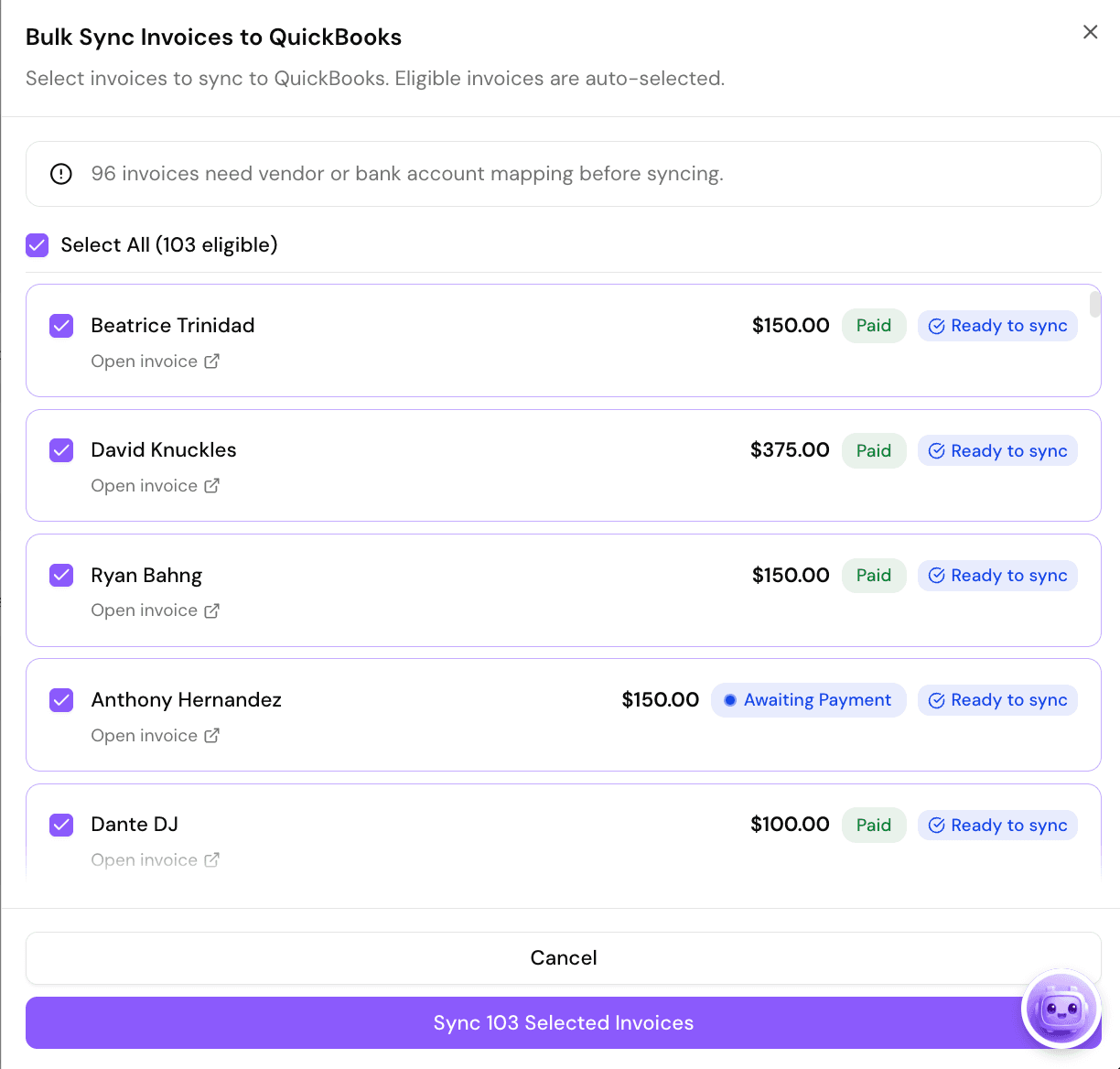
Bulk Invoice Sync
Select and sync hundreds of invoices to QuickBooks at once. Each invoice shows payment status and sync readiness. One click pushes them all to your books.
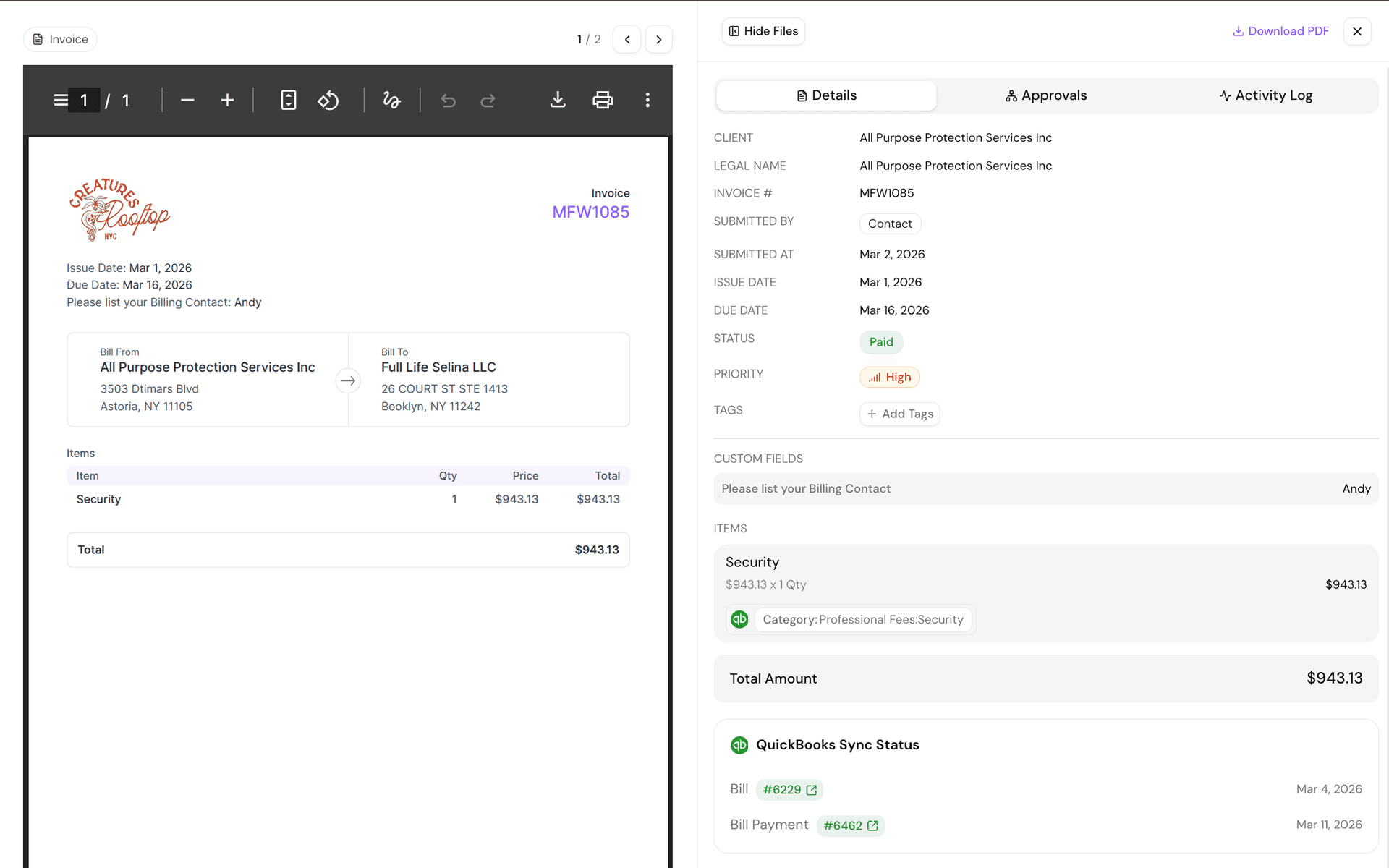
Invoice Audit Trail
Every invoice carries a complete QuickBooks sync history. See the linked Bill and Bill Payment record numbers, sync dates, and direct links to the corresponding QuickBooks entries.
DATA MAPPING
See exactly what syncs between systems
| Data Type | Cleo Pay to QB | QB to Cleo Pay | Notes |
|---|---|---|---|
| Vendor Records | Name, address, tax ID, payment terms | ||
| Invoices / Bills | Line items, amounts, due dates, PO numbers | ||
| Payments | Marked as paid in QB when processed in Cleo Pay | ||
| Bill Payments | Linked to original invoice for reconciliation | ||
| Chart of Accounts | Pulled from QB during initial setup; mappable | ||
| Classes / Locations | Used for multi-location P&L segmentation | ||
| Tax Codes | Applied automatically based on vendor and category |
SETUP IN MINUTES
Connect QuickBooks to Cleo Pay
No IT team required.
FAQ
Common questions about the QuickBooks integration
Ready to Automate Your Hospitality AP?
Connect QuickBooks to Cleo Pay and see the sync in action.